
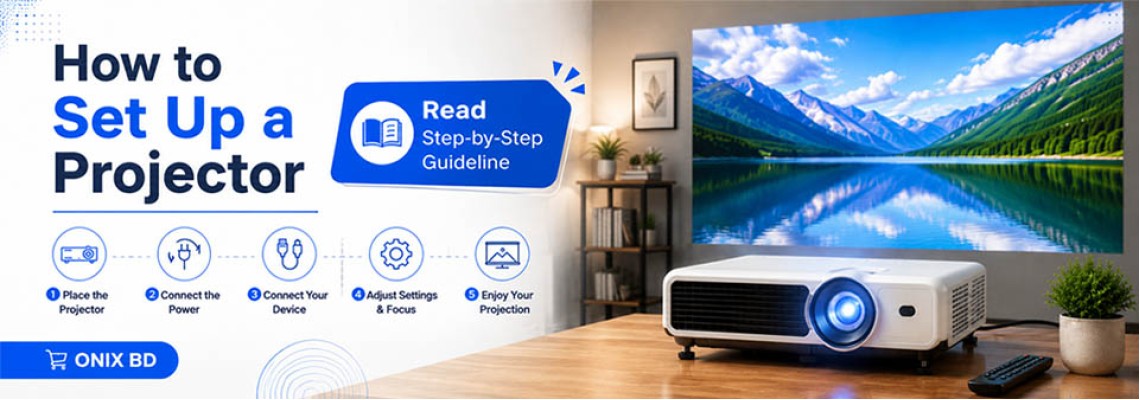
A lot of people buy a projector, unbox it excitedly, plug everything in — and then just stare at a blurry, crooked image on the wall wondering what went wrong. It's not the projector's fault. It's just that nobody walked them through the setup properly. At Onix BD, we've helped hundreds of customers in Bangladesh get their projectors running — from students setting up a Cheerlux mini projector in their dorm room, to businesses installing a BenQ or Epson unit in a conference room, to families building a home theater with Optoma or Havit. Every setup is a little different, but the fundamentals are always the same. So whether this is your very first projector or you're just switching to a new one, this guide walks you through everything — step by step, no confusing jargon. Let's get it done.
Table of Contents
- What You Need Before You Start
- Choosing the Right Location
- Setting Up the Projector Stand or Mount
- Connecting Your Projector to a Source Device
- Powering On and Initial Configuration
- Adjusting the Image: Focus, Zoom, and Keystone
- Audio Setup
- Optimizing Picture Quality
- Brand-Specific Setup Tips (Cheerlux, BenQ, Epson, Havit, Optoma)
- Common Setup Mistakes to Avoid
- Final Checklist
1. What You Need Before You Start
Before you begin the setup process, gather all the necessary equipment. Having everything ready saves time and avoids frustration midway through installation.
Essential items you'll need:
- Your projector (from brands like Cheerlux, BenQ, Epson, Havit, or Optoma)
- A power cable (usually included in the box)
- HDMI cable, VGA cable, or USB-C cable depending on your source device
- A projection screen or a clean, flat white wall
- A projector stand, table, or ceiling mount
- Source device: laptop, PC, smartphone, media player, or Blu-ray player
- Remote control and batteries (if not pre-installed)
- Optional: Audio cable or Bluetooth speaker
At Onix BD, we provide all accessories alongside the projector so you're ready to go from day one.
2. Choosing the Right Location
The placement of your projector is one of the most critical steps in the setup process. Getting this wrong means a distorted, undersized, or oversized image that's difficult to fix later.
Key Factors to Consider:
Throw Distance Every projector has a "throw ratio" — the relationship between the distance from the lens to the screen and the width of the image produced. Standard projectors typically require a throw distance of 1.5x to 2.5x the screen width. Short-throw and ultra-short-throw projectors (common in Epson and Optoma lineups) work much closer to the screen.
Screen Size Measure your available wall or screen space first. Most home setups work well with an 80" to 120" projection screen. Then calculate the required throw distance using your projector's manual or the manufacturer's throw distance calculator.
Ambient Light Choose a room where you can control lighting. Projectors perform best in dim or dark environments. If you're using a projector in a bright room, consider a high-lumen model — many BenQ and Epson models offer 3000–4000 lumens for daytime use.
Ceiling vs. Table Placement Decide whether you'll ceiling-mount the projector or place it on a table. Ceiling mounts offer a cleaner look and a more permanent setup, while table placement is more flexible and portable — ideal for the Cheerlux or Havit mini projectors that Onix BD stocks.
3. Setting Up the Projector Stand or Mount
Table Setup
Place the projector on a sturdy, level surface. Make sure it's centered with the screen and at the correct height. Most projectors have adjustable feet at the bottom to fine-tune the vertical angle.
Ceiling Mount Setup
For a ceiling mount:
- Find the ceiling joists using a stud finder.
- Attach the mounting bracket to the ceiling securely.
- Connect the projector to the mount arm.
- Adjust the arm so the projector lens aligns with the center of the screen.
- Enable "Ceiling Mode" in the projector's settings menu to flip the image correctly.
Make sure the mount you use is rated for your projector's weight. At Onix BD, we stock compatible ceiling mounts for all the major brands we carry.
4. Connecting Your Projector to a Source Device
This step varies slightly depending on your source device and projector model, but the core process is the same.
HDMI Connection (Most Common)
- Plug one end of the HDMI cable into your laptop, PC, gaming console, or media player.
- Plug the other end into the HDMI IN port on your projector.
- Switch the projector's input source to HDMI using the remote or control panel.
Most modern projectors — including BenQ, Epson, and Optoma models — come with at least one HDMI port. Some offer two HDMI inputs for connecting multiple devices simultaneously.
VGA Connection (Older Devices)
For older laptops or desktop PCs:
- Connect the VGA cable between the computer and the VGA port on the projector.
- Use a 3.5mm audio cable if you need audio (VGA doesn't carry audio).
USB / Screen Mirroring
Some Cheerlux and Havit mini projectors support USB input or wireless screen mirroring. You can plug a USB flash drive directly into the projector to play media files without any external device.
Wireless / Wi-Fi Connection
Many modern projectors support wireless connectivity. Download the manufacturer's app, connect both devices to the same Wi-Fi network, and mirror your screen wirelessly. This is especially convenient for mobile presentations and casual streaming.
5. Powering On and Initial Configuration
Once everything is connected:
- Plug the power cable into the projector and wall outlet.
- Press the Power button on the projector or remote control.
- Wait for the lamp to warm up (usually 10–30 seconds).
- Follow the on-screen setup wizard if available. This typically includes:
- Language selection
- Display mode (Front, Rear, Ceiling Front, Ceiling Rear)
- Input source selection
- Network/Wi-Fi setup (for smart projectors)
For first-time use, most Epson and Optoma projectors walk you through a guided setup. Cheerlux and Havit compact projectors are simpler — they usually just need source selection.
Adjusting the Image: Focus, Zoom, and Keystone
This is where most beginners struggle. Here's how to get a sharp, properly-sized, and well-aligned image.
Focus Adjustment
Locate the focus ring on the projector lens. Slowly rotate it left or right while looking at the projected image until text and edges appear sharp and clear.
Zoom Adjustment
Use the zoom ring (or digital zoom on some models) to make the image larger or smaller without moving the projector. Zoom in to fill the screen; zoom out if the image is too large.
Keystone Correction
Keystone distortion happens when the projector is not perfectly level with the screen — the image appears trapezoidal instead of rectangular.
- Vertical Keystone: Corrects top-to-bottom angle when the projector is tilted up or down.
- Horizontal Keystone: Corrects left-to-right angle when the projector is off-center.
Most projectors offer Auto Keystone Correction. You can also adjust it manually through the settings menu. For the best image quality, always try to position the projector as straight as possible rather than relying heavily on keystone correction, as heavy correction can slightly reduce sharpness.
Lens Shift (Advanced Models)
Premium BenQ and Epson projectors offer optical lens shift — a physical adjustment that moves the lens without distorting the image. This is superior to digital keystone correction and is preferred for home theater setups.
7. Audio Setup
Projectors have built-in speakers, but they're usually basic. For better sound:
Option 1: Built-in Speaker Sufficient for small rooms and casual use. Most Cheerlux and Havit projectors have decent built-in speakers for their size.
Option 2: External Speaker via 3.5mm Cable Connect a speaker to the projector's audio output jack for significantly better sound quality.
Option 3: Bluetooth Speaker Many modern projectors support Bluetooth audio output. Pair your Bluetooth speaker through the settings menu for a wireless, clean setup.
Option 4: AV Receiver / Surround Sound For a full home theater experience, connect the projector's HDMI ARC port or optical audio output to a surround sound system. BenQ and Epson home theater projectors are well-suited for this type of setup.
8. Optimizing Picture Quality
Once the basic setup is done, fine-tune the picture settings for the best experience.
Brightness (Lumens)
Increase brightness for well-lit rooms; lower it for dark rooms to avoid eye strain. Most projectors offer preset modes like Cinema, Presentation, Game, and Dynamic.
Contrast
Adjust contrast to get deep blacks and bright whites. A well-balanced contrast ratio improves depth and detail.
Color Temperature
- Warm: Better for movies and evening viewing — easier on the eyes.
- Cool/Neutral: Better for presentations and document display.
Picture Mode Presets
Most trending projectors from BenQ, Epson, and Optoma come with factory-calibrated picture modes. Start with the Cinema or Movie mode for home use and Presentation mode for office use, then fine-tune from there.
Brand-Specific Setup Tips
At Onix BD, we specialize in several top projector brands. Here's what to know about each:
Cheerlux Projector
Cheerlux projectors are beginner-friendly and great for home entertainment on a budget. Setup is straightforward — plug in, connect via HDMI or USB, and you're ready. Focus adjustment is manual via the lens ring. Ideal for bedrooms and small living spaces.
BenQ Projector
BenQ projectors are known for their color accuracy and eye-care technology. During setup, enable BenQ's CinematicColor or HDR-PRO mode for premium picture quality. BenQ's SmartEco mode automatically adjusts lamp brightness to save energy and extend lamp life.
Epson Projector
Epson projectors uses 3LCD technology instead of DLP, providing brighter, more colorful images without the rainbow effect. During setup, use Epson's split-screen function if connecting two sources simultaneously. Epson's lens shift feature makes positioning much easier — especially for ceiling mounts.
Havit Projector
Havit projectors are compact, portable, and affordable — perfect for users who need a projector on the go. Setup is ultra-simple. They support native 1080p input and connect via HDMI, USB, or AV. Great for travel, outdoor movie nights, and dorm rooms.
Optoma Projector
Optoma projectos are specializes in high-brightness and ultra-short-throw projectors. For Optoma setup, pay attention to the Dynamic Black feature, which adjusts the iris in real time for better contrast. Optoma's 4K UHD models require an HDMI 2.0 cable — using an older HDMI 1.4 cable will limit resolution.
All these brands are available at Onix BD with official warranty and after-sales support. You can check it out on google by searching best projector price in bangladesh and then get Onix bd as the popular shop in bangladesh for projector.
Common Setup Mistakes to Avoid
Even experienced users make these errors. Here's what to watch out for:
- Skipping the warm-up period — Always let the lamp warm up before adjusting brightness or color settings.
- Over-relying on keystone correction — Excessive digital keystone correction reduces image sharpness. Position the projector correctly instead.
- Wrong cable type — Using HDMI 1.4 for a 4K projector will cap your resolution. Always match cable specs to your projector.
- Ignoring the room's ambient light — Even a high-lumen projector will struggle in a very bright room without blackout curtains.
- Placing the projector too close to a wall — Ensure adequate ventilation around the projector to prevent overheating and lamp failure.
- Not checking input source — If the screen is blank after turning on, make sure the input source on the projector matches the cable you connected.
- Forgetting to enable Ceiling Mode — If the image is upside down, simply go to Settings → Display → Projection Mode → Ceiling Front or Ceiling Rear.
11. Final Setup Checklist
Before your first viewing, run through this quick checklist:
- Projector positioned at the correct throw distance
- Power cable connected and projector powered on
- Source device connected via HDMI/VGA/USB
- Input source selected on projector
- Image focused and sharp
- Zoom adjusted to fill the screen
- Keystone correction applied if needed
- Audio connected (internal or external speaker)
- Picture mode set to Cinema/Presentation as needed
- Ventilation space around projector confirmed
Conclusion
Setting up a projector doesn't have to be complicated. With the right preparation and these step-by-step instructions, you can have a professional-quality display up and running in under 30 minutes. Whether you go with a Cheerlux mini projector for casual use, a BenQ or Epson for home theater immersion, a Havit for portability, or an Optoma for ultra-bright 4K performance — Onix BD has the right projector for your needs, along with expert guidance and full after-sales support.Visit Onix BD today to browse our full range of projectors and accessories. Our team is ready to help you find the perfect projector and walk you through setup every step of the way.

Leave a Comment