








What is a Screenshot?
A screenshot or screen capture is a picture taken by a computer, mobile or tablet user, using the device in question, to record the visible items displayed on the screen. The image is stored as a graphics file. Screenshots can be taken using various programs or by using particular keyboard/button shortcuts. A screenshot, sometimes referred to as a screencap or screengrab, is an image that shows the contents of a computer screen. These captures let you capture exactly what you see on your screen and are often shared with others or used as a reference point later on. But what is a screenshot, and how do you take one? Taking, saving, and sharing screenshots can be extremely helpful. Some insist that it is one of their most powerful tools. But how can a simple picture of your screen be so vital? Well, they often act as an artifact. They serve as a way to prove to others that you are seeing the crazy stuff you’re seeing.
Easy Ways to Take Screenshots on a PC
Taking screenshots on a PC is quite easy and can be done using built-in features or third-party software. Here are some easy ways to take screenshots:
Using the Print Screen Key
The Print Screen key, often abbreviated as "PrtScn" or "PrtSc", is a quick and convenient way to capture your entire screen or a specific window.
- Locate the "Print Screen" key on your keyboard. It is usually abbreviated as "PrtSc" or "PrtScn".
- Press the "Print Screen" key once to capture the entire screen.
- If you want to capture a specific window, click on the window to make it active and then press the "Alt" key + "Print Screen" keys.
- Open any image editor (e.g., Paint, Photoshop) and press "Ctrl" + "V" to paste the captured screenshot.

Using the Snipping Tool
Type "Snipping Tool" in the search bar located in the bottom left corner of your screen.
- Click on the "Snipping Tool" app from the search results.
- Click on "New" and then select the area of the screen you want to capture.
- Select "Save As" to save the snapshot after you've selected the area you want to capture.

Using the Windows Key + Print Screen Key
- Press the Windows key + Print Screen key together.
- To show that a screenshot has been taken, the screen will momentarily dim.
- The captured screenshot will be saved in the "Screenshots" folder in your "Pictures" folder.
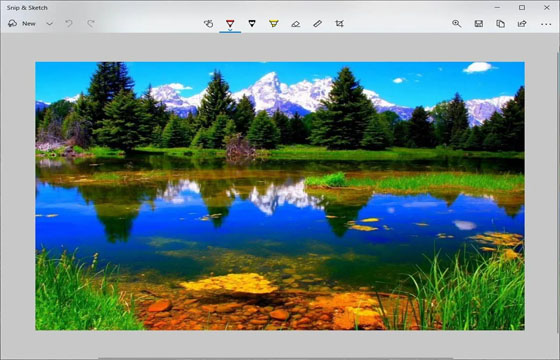
Using Snip & Sketch
Snip & Sketch is an improved version of the Snipping Tool, offering more features and flexibility.
- Access Snip & Sketch: Press "Windows key + Shift + S" to open Snip & Sketch.
- Capture the Screen: Use the tools provided to capture the desired area of your screen.
- Edit and Annotate: After capturing the screenshot, you can annotate it using various tools like pen, pencil, and highlighter.
- Save or Share the Screenshot: Once you're done editing, you can save the screenshot to your computer or share it directly from the Snip & Sketch interface.
Using Alt + Print Screen
To take a quick screenshot of the active window, use the keyboard shortcut Alt + PrtScn. Alt + Print Screen is a keyboard shortcut used to capture a screenshot of the active window on a Windows computer. When you press Alt + Print Screen, it copies an image of the active window to the clipboard, which you can then paste into an image editing program like Paint or into a document or email. It's a handy way to quickly capture and share information or images from specific windows without capturing the entire screen.
These are the five most common ways to take screenshots on a PC. You can choose the method that works best for you depending on your needs.

There are no comments for this Article.